Q17. When deciding how to set up the system to recognize revenue, it is important to understand the extent of revenue deferral and the subsequent timing of revenue recognition.
Which two statements are true when you consider that recognition depends on the nature of the contingency?
Explanation
When you consider that recognition depends on the nature of the contingency, these two statements are true:
* Payment-based contingencies do not always require payment before the contingency can be removed and revenue recognized. For example, if a customer pays a deposit or an advance payment, the contingency is removed and revenue is recognized at that point.
* Post-billing customer acceptance clauses must expire (implicit acceptance), or be manually accepted (explicit acceptance), before the contingency can be removed and revenue recognized. For example, if a customer has 30 days to accept or reject a product after receiving an invoice, the contingency is removedafter 30 days or when the customer accepts the product, whichever comes first. The other statements are not true because:
* Pre-billing customer acceptance clauses require the recording of customer acceptance in the feeder system, and its expiration, before importing into Receivables for invoicing. Customer acceptance or its expiration must occur before invoicing, not before revenue recognition.
* Time-based contingencies can expire, but the contingency will have to be removed manually before the revenue is recognized if payment is not due yet. For example, if a customer has a one-year warranty period, the contingency is removed after one year, but revenue is recognized when payment is due or received, whichever comes later.
* Time-based contingencies must expire before the contingency can be removed and revenue recognized, not must not expire. Verified References:
https://docs.oracle.com/en/cloud/saas/financials/23b/faofc/manage-revenue-for-receivables.html#FAOFC-
Q18. Manage Receipt Classes and Methods
Scenario
Supremo US Business unit needs to capture customer payments that will be reconciled in the Cash Management application. You need to define a receipt class and receipt method, and assign the appropriate bank account to meet this requirement.
Task:
Define Remittance Bank Account where:
* Bank Account is associated with Receipt Method
* Primary bank account is linked the Denver branch of Bank of America
* Bank account number ends with 2870
* Remittance bank account is effective as of January 1, 2023
* GL Accounts section must contain the values below for company segment 120 Supremo Fitness
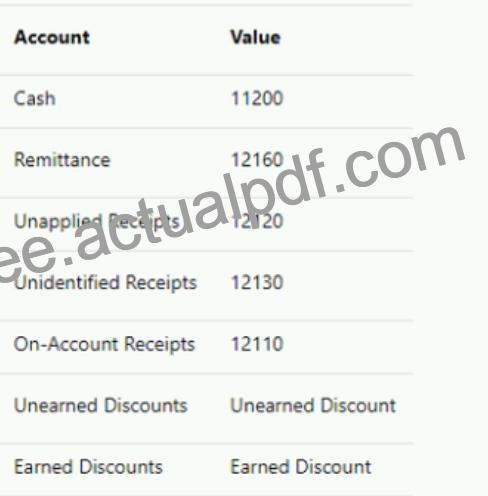
See the explanation below for solution.
Explanation
* Log in to Oracle Financials Cloud.
* Click on the Remittance Bank Accounts icon in the Receivables work area.
* Click on the Create button.
* In the Remittance Bank Account window, enter the following information:
* Name: XXRemittance Bank Account (Replace XX with your allocated user ID.)
* Bank Account Number: The bank account number that you want to associate with the receipt method.
* Bank Name: Bank of America
* Branch Name: Denver
* Account Type: Checking
* Effective Date: January 1, 2023
* Primary: Yes
* GL Accounts:
* Company Segment: 120 Supremo Fitness
* Account Code: 12000
* Account Name: Accounts Receivable – Supremo Fitness
* Company Segment: 120 Supremo Fitness
* Account Code: 12001
* Account Name: Allowance for Doubtful Accounts – Supremo Fitness
* Click on the Save button.
The new remittance bank account will be created.
Q19. Which three receipt types can be reversed in the Cloud?
Explanation
These are the three receipt types that can be reversed in the Cloud. Receipts applied to open receipts and receipts that are archived cannot be reversed. Verified References: [How You Reverse Receipts – Oracle]
Topic 1, Performance Based Questions
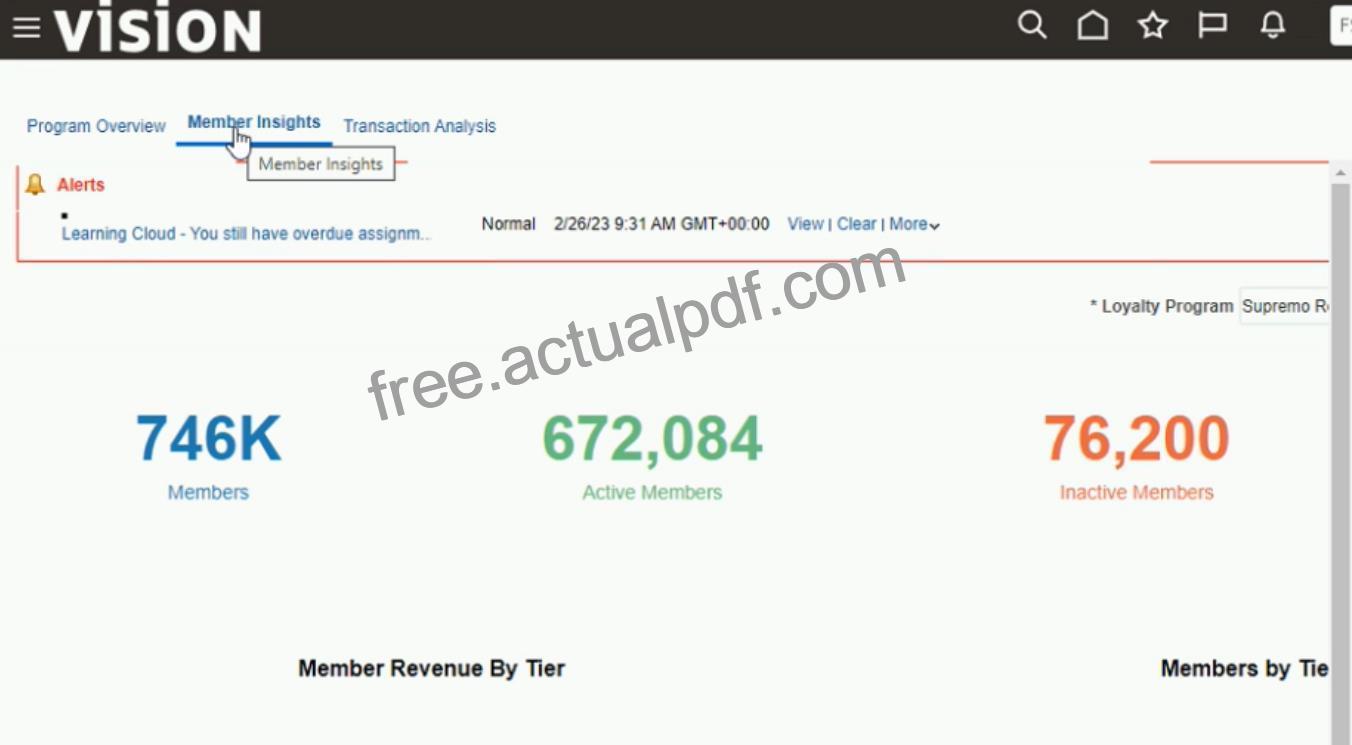
“Member Insights”
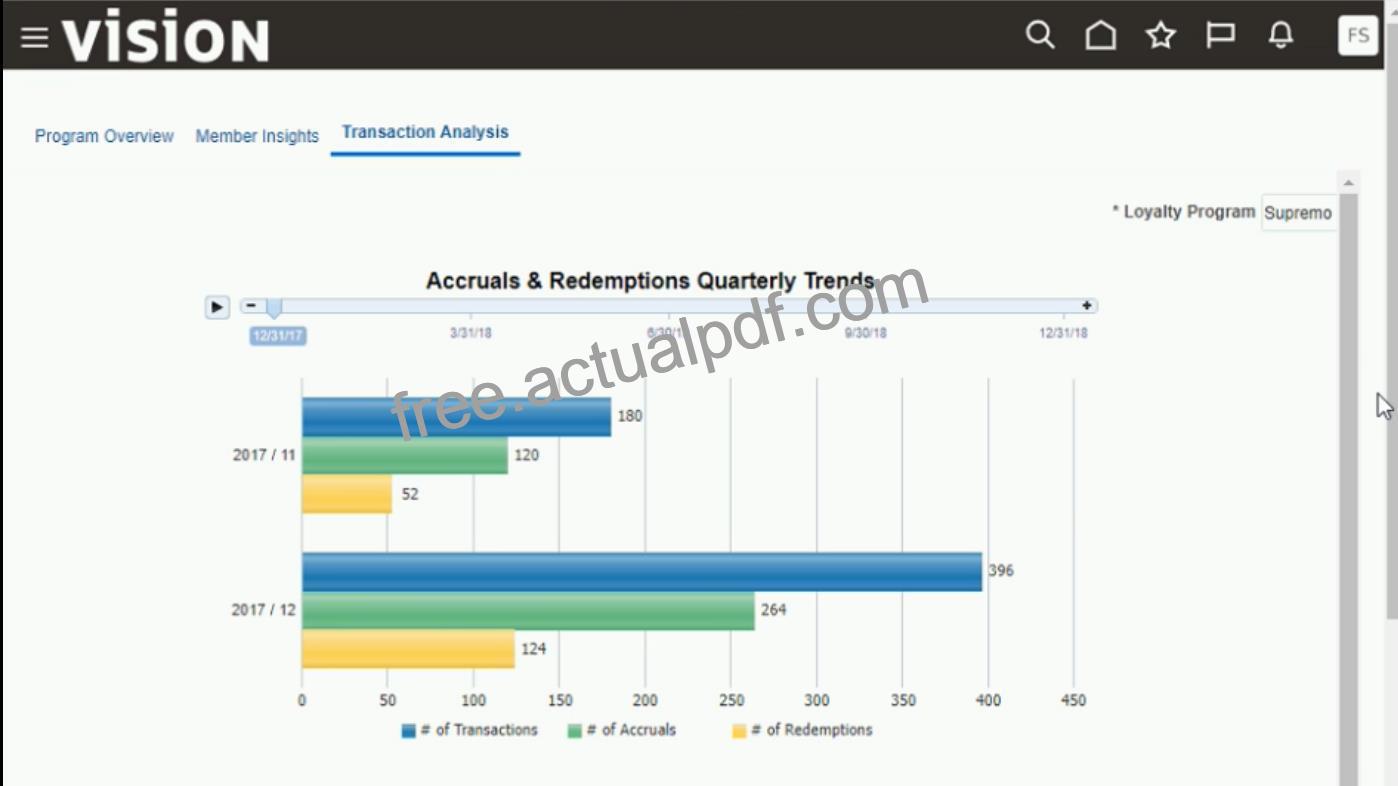
“Transaction Analysis”
Confirm the Oracle Applications Cloud Version
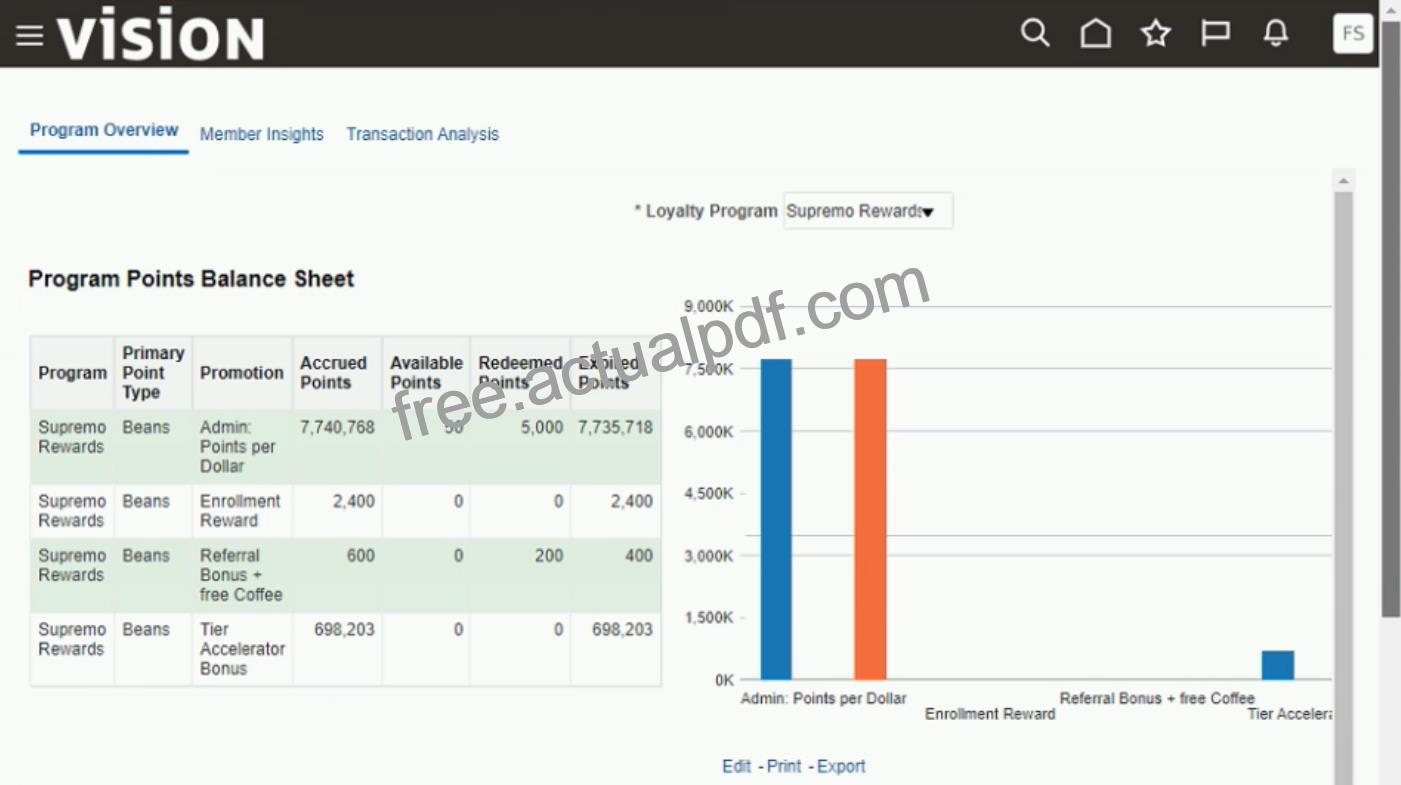
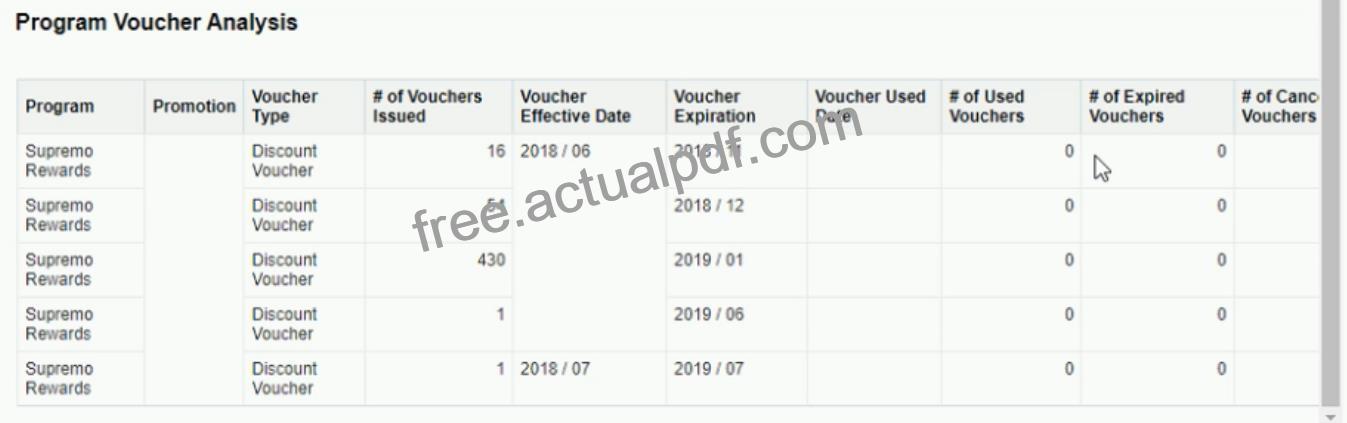
Note: The Oracle Applications Cloud environment might take some time to launch.
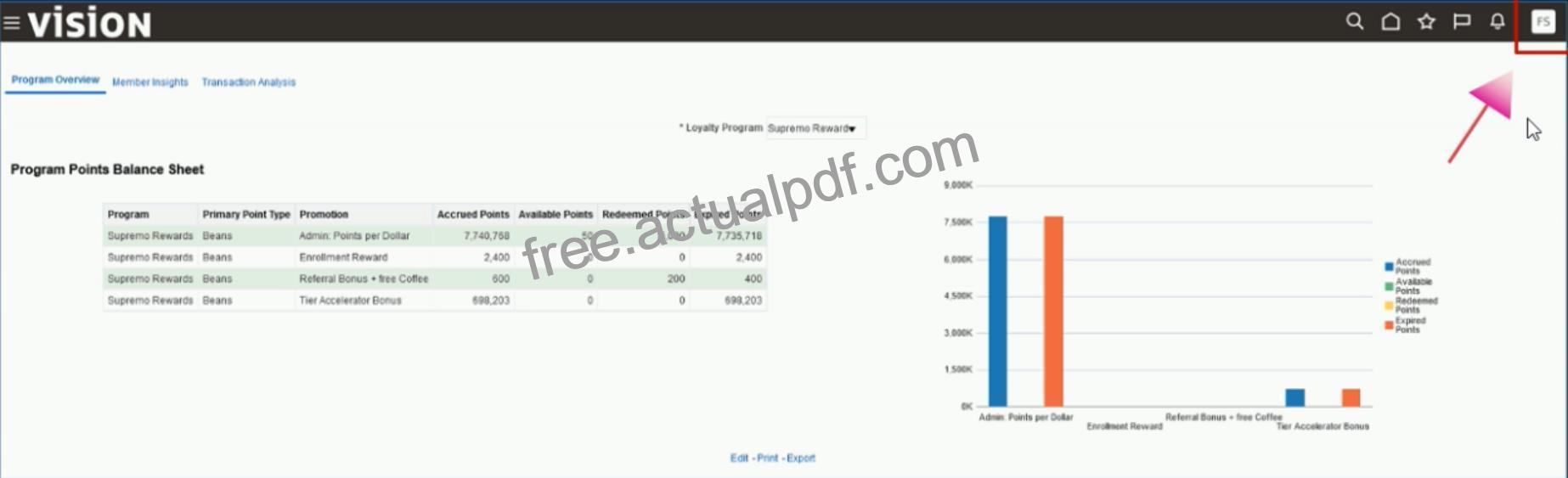
1. Click on the Settings and Actions menu under your profile in the Oracle Applications Cloud window.
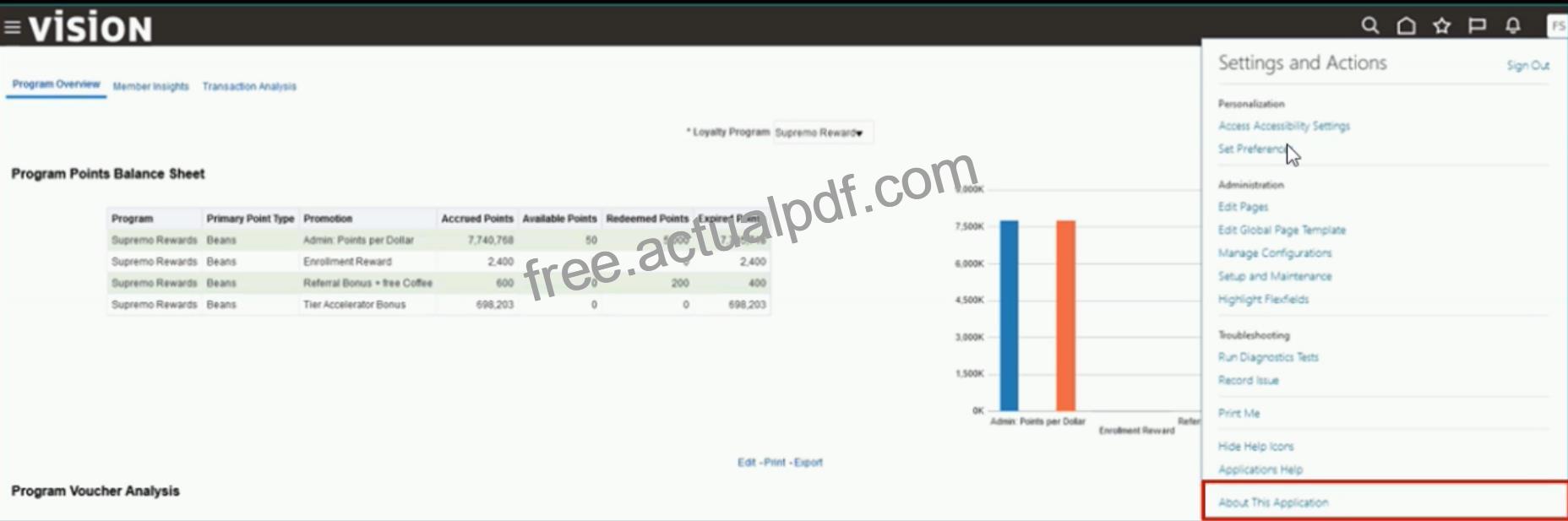
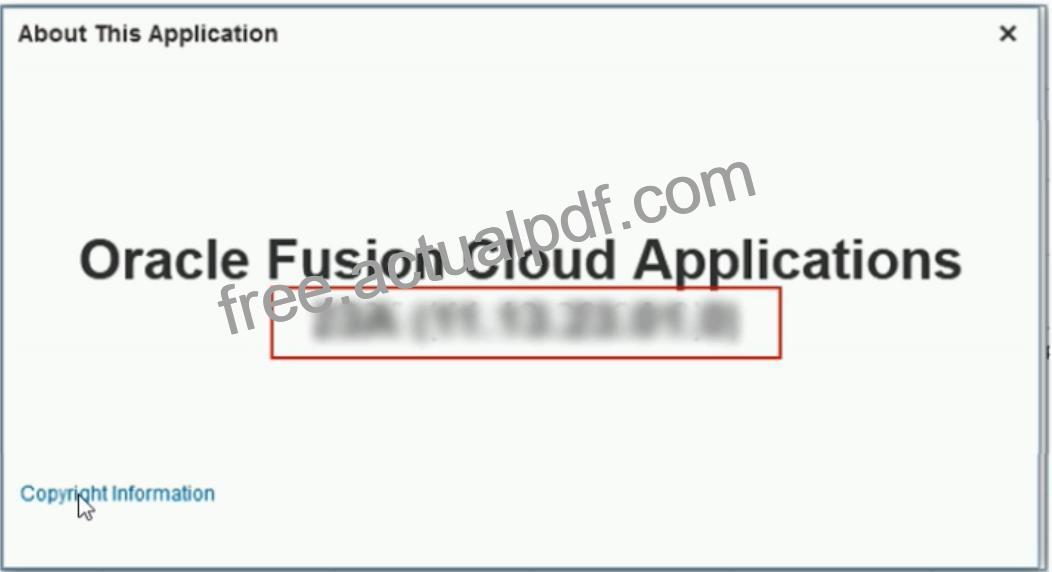
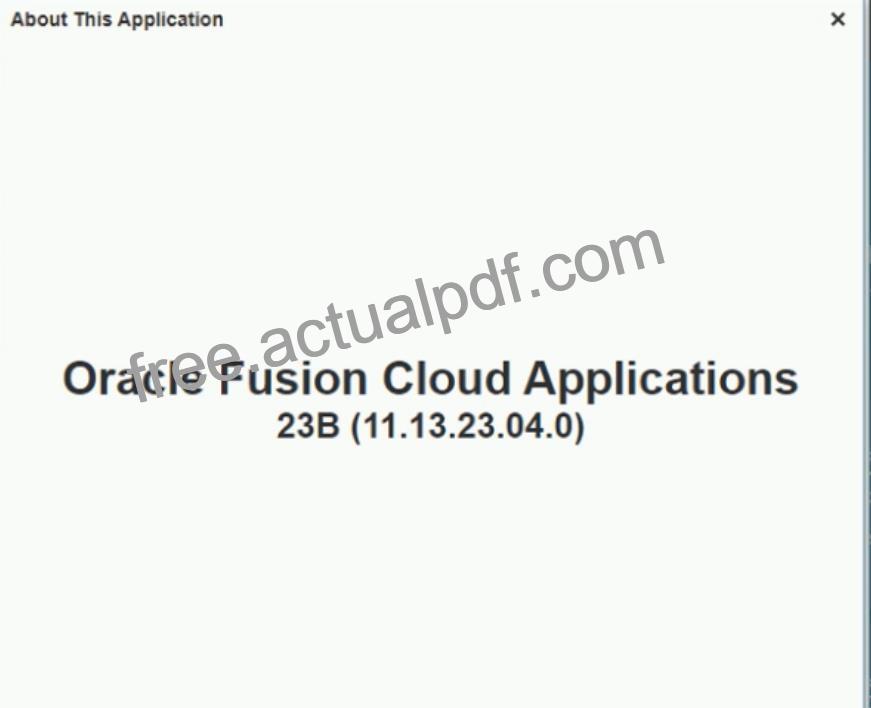
2. Click on About This Application in the Settings and Actions menu.
3. Copy the complete version number from the About this Application
pop-up in the Oracle Application Cloud window.
4. Paste the version number in the box below.
5. Click Confirm.